Improving your Wi-Fi isn't just about buying a new, powerful router. It's a process of diagnosing the weak spots, optimising what you already have, and then strategically upgrading your hardware. To get that consistent, business-grade connectivity, you'll need to look at moving your router to a central spot, finding a less congested Wi-Fi channel, and possibly bringing in tools like mesh networks or extra access points to kill off those dead zones for good.
Pinpointing Your Business Wi-Fi Weak Spots
Before you can fix your Wi-Fi, you have to understand exactly where and why it's failing. Rushing out to buy new kit without a proper diagnosis is a bit like prescribing medicine without knowing the illness—it’s an expensive guessing game. The goal here is to move from frustration to a clear, actionable plan based on real evidence.
Think of this initial assessment as your strategic starting point. For many professional services firms we've assisted, the root cause isn't a single faulty router but a mix of environmental factors and older equipment that's simply struggling to keep up with today's demands.
Diagnosing Common Wi-Fi Coverage Issues
To get started, this quick-reference table can help you match what you're seeing in the office to its most likely cause. It's a handy way to narrow down the problem before you start changing things.
| Observed Symptom | Likely Cause | Initial Diagnostic Action |
|---|---|---|
| Complete dead zones in certain rooms or areas. | Physical Obstructions (thick walls, metal filing cabinets). | Walk the area with a Wi-Fi analyser app to confirm signal drop-off points. |
| Random dropouts even when close to the router. | Channel Interference from neighbouring networks or electronics. | Use a Wi-Fi scanner to check for congested channels (e.g., channels 1, 6, 11). |
| Slow speeds for everyone, especially during peak hours. | Outdated or Overloaded Hardware. | Check your router's specifications and the number of connected devices. |
| The connection is strong near the router but weak far away. | Poor Router Placement or insufficient range. | Review the router's location; is it central and unobstructed? |
This table isn't exhaustive, but it covers the most common issues we see and gives you a logical first step for each.
Identifying the Common Culprits
Weak Wi-Fi is rarely down to just one thing. It's usually a combination of physical and technical hurdles that your network has to overcome.
Let's break down the usual suspects:
- Physical Barriers: Concrete walls, metal shelving units, and even large fish tanks can absorb or block Wi-Fi signals. For example, a professional services firm in a listed building in Wiltshire might find those very walls are the main reason connectivity is poor in client-facing meeting rooms.
- Signal Interference: Your network isn't operating in a bubble. Other devices—from the microwave in the kitchen to cordless phones and, of course, all the neighbouring office networks—can be competing for the same radio frequencies. This creates congestion and makes your connection unstable.
- Outdated Hardware: A router from several years ago probably doesn't support the latest Wi-Fi standards. More importantly, it might lack the processing power to juggle all the phones, laptops, printers, and smart devices your business relies on today.
Mapping Your Coverage Gaps
To really know how to improve your Wi-Fi, you need to see where your signal is strong and where it vanishes. This process, often called heat mapping, shows you the specific "dead zones" that are grinding productivity to a halt. While professionals use specialised gear for a formal site survey, you can create a basic map yourself.
It's simpler than it sounds. Just walk through your premises with a laptop or smartphone running a continuous speed test or a Wi-Fi analyser app. Make a note of where the signal strength drops off a cliff. Signal strength is measured in decibel-milliwatts (dBm), and with this measurement, numbers closer to zero are better.
A signal strength of -67 dBm is generally considered the gold standard for most business needs, including smooth voice and video calls. Once you see the signal drop to -80 dBm or lower, you're in trouble—that's where you'll get dropped connections and frustrating lag.
Poor Wi-Fi is a persistent headache for UK businesses, especially in more rural counties. According to Ofcom's Connected Nations 2023 report, while gigabit-capable broadband is becoming more common, many small and medium-sized businesses in areas like Dorset, Somerset, and Wiltshire still battle internal dead zones that cripple their day-to-day operations. You can read more in the full Ofcom report on UK connectivity.
Using Simple Diagnostic Tools
You don't need to spend a fortune to get started. Plenty of free applications for both laptops and smartphones can measure Wi-Fi signal strength in dBm and show you which channels are most crowded in your area. This data is absolutely crucial for making smart decisions.
Understanding what these tools are telling you is the final piece of the puzzle. Once you know where the signal is weak and have a solid idea of why—whether it's a concrete wall or a congested channel—you can start rolling out targeted solutions instead of just trying generic fixes and hoping for the best. For a closer look at what's happening on your network, our guide on how to monitor network traffic is a great next step.
Quick Wins for Immediate Signal Improvement
Once you have a clear picture of your office’s Wi-Fi weaknesses, you can start with some simple, low-cost actions that often deliver a surprisingly noticeable boost in performance. These practical first steps are the perfect starting point to improve your Wi-Fi coverage without any significant investment.
Many businesses jump to the conclusion that fixing poor connectivity means buying expensive new equipment. That's not always the case. By optimising what you already have, you can often solve the most pressing issues and get your team back on track without spending a penny. It’s all about working smarter, not just spending more.
Strategic Placement Is Everything
Where you put your router and any access points (APs) is easily the single most important factor affecting your signal. Wi-Fi signals radiate outwards in all directions, a bit like ripples in a pond. If your router is tucked away in a corner cabinet or a back storeroom, you're immediately wasting a huge portion of its broadcast power on an exterior wall.
The golden rule here is to think central and elevated. Moving your main router to a more central spot in the office—perhaps on a high shelf or even mounted near the ceiling—can dramatically improve coverage. This simple relocation helps the signal travel over and around common office obstacles like desks, filing cabinets, and partition walls.
It's also crucial to keep your hardware away from things that cause interference. Common culprits include:
- Microwave Ovens: The kitchen microwave can bring a 2.4 GHz Wi-Fi network to a grinding halt whenever it's being used.
- Thick Walls: Dense materials like concrete, brick, and metal are Wi-Fi killers, absorbing signals much more effectively than standard plasterboard.
- Large Metal Objects: Filing cabinets, metal shelving, and even large appliances can create dead zones behind them.
Relocating a router is often the most impactful quick fix. An office that moves its router from under a receptionist's desk to a central, elevated position can see signal strength improve by 10-15 dBm in previously weak areas—enough to turn an unusable connection into a reliable one.
Change Your Wi-Fi Channel
In a busy office building, your network is competing with dozens of others for a limited amount of radio frequency airspace. By default, most routers will use one of three common channels (1, 6, or 11 on the 2.4 GHz band). If all your neighbours are on the same channel, it's like everyone trying to shout over each other in a crowded room. The result is interference and an unstable connection.
By logging into your router's administrative settings, you can manually select a less congested channel. A Wi-Fi analyser app will show you which channels are being heavily used nearby, helping you pick a quieter one.
For instance, a small accountancy firm in Dorset sharing a building with several other businesses might find its connection constantly drops during peak hours. A quick scan could reveal every network is clustered on channel 6. Simply switching their network to channel 11 could provide an immediate and significant boost to network stability, ensuring critical financial software remains responsive. This adjustment is a powerful way to improve Wi-Fi coverage in high-density environments.
Keep Your Firmware Updated
Finally, one of the most overlooked but critical steps is ensuring your router and APs are running the latest firmware. Think of firmware as the operating system for your network hardware. Manufacturers regularly release updates that do far more than just patch security vulnerabilities.
These updates often include vital performance enhancements:
- Improved signal processing algorithms
- Better management of connected devices
- Fixes for bugs that cause random connection drops
Many modern business-grade routers offer an automatic update feature. If yours doesn't, make it a quarterly task to log in and check for new firmware. Neglecting this is like running your business computers without security patches—it leaves you vulnerable and compromises performance.
Choosing the Right Hardware Upgrades
If you've tried all the quick fixes and your office Wi-Fi is still letting you down, it's time to look at a hardware upgrade. Tweaking your existing router can only get you so far, especially when you're dealing with a larger building, more staff, or just more connected devices than ever before. To truly solve the problem, you need to invest in the right equipment and turn your network from a daily frustration into a rock-solid business asset.
This isn't just about buying a new box off the shelf. It's a strategic decision that lays the groundwork for your business's stability and growth. Getting this right means building an infrastructure that can handle not just what you need today, but what you'll need tomorrow.
Before you start spending money, this flowchart can help you run through the initial troubleshooting steps one last time, just to be sure.
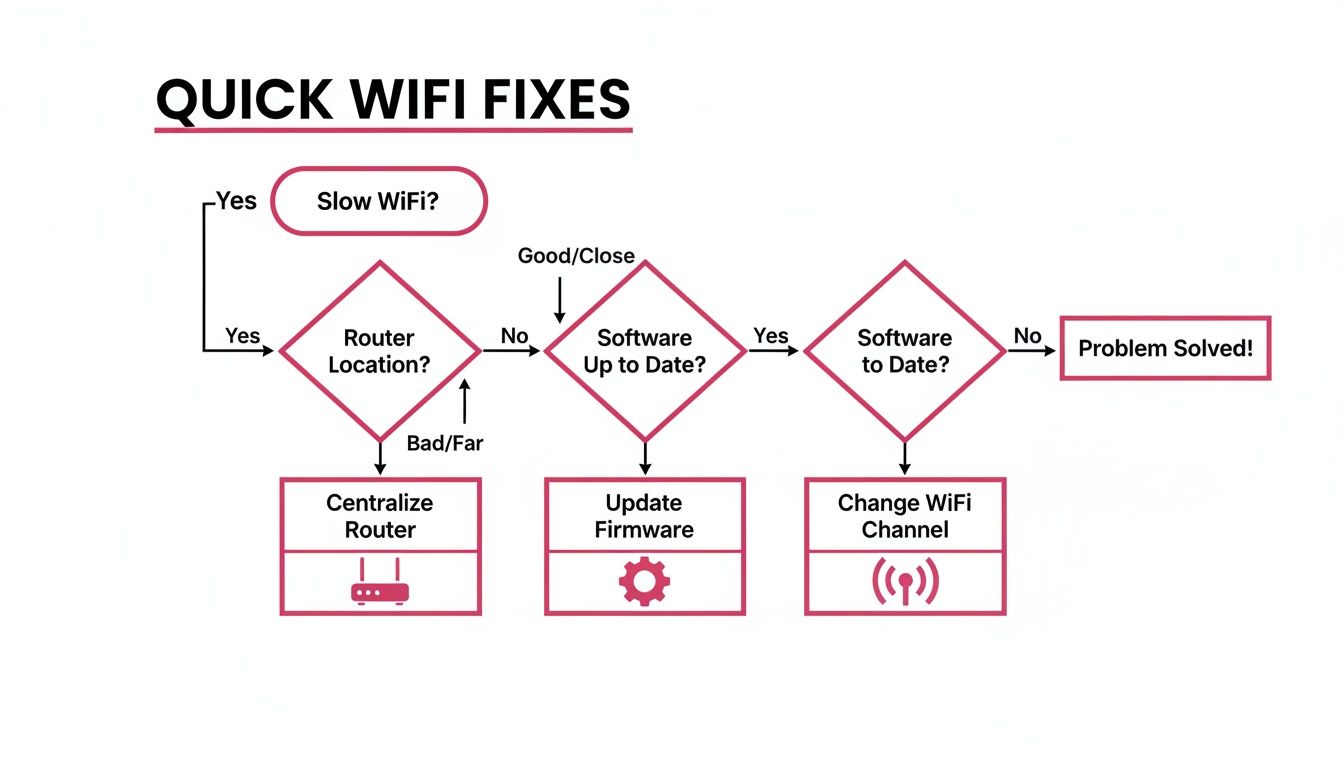
Running through these basics helps confirm that a hardware upgrade is genuinely the next logical step to improve your Wi-Fi coverage for good.
Comparing Your Upgrade Options
There are a few different ways to approach a hardware upgrade, and the best path depends entirely on your specific setup. A common mistake is trying to solve a business problem with consumer-grade kit. Let's break down the professional options.
-
Wi-Fi Extenders (or Repeaters): These are the simplest devices to understand. They pick up your existing Wi-Fi signal and rebroadcast it. They can be a quick fix for a single, isolated dead spot, like a small storeroom or a meeting room on the edge of your signal's reach. The catch? They effectively cut your available bandwidth in half because they use the same radio to both receive and transmit data. This makes them a poor choice for any area with heavy use.
-
Mesh Wi-Fi Systems: A big step up from extenders, a mesh system replaces your single router with several 'nodes' that you place around your premises. These nodes all talk to each other to form one large, seamless network. It’s an excellent solution for larger offices with awkward layouts or listed buildings where running new cables is out of the question.
-
Multiple Access Points (APs): For most businesses, this is the gold standard. Access Points are dedicated devices that broadcast Wi-Fi, but they are physically connected back to your main network switch with an Ethernet cable. This creates what's known as a 'wired backhaul', and it's a game-changer for performance.
A wired backhaul is the secret to maximum performance and reliability. By connecting each Access Point directly to your network with a cable, you eliminate the signal degradation and bandwidth loss you get with wireless extenders or even mesh systems. This is non-negotiable for any environment where dropouts are unacceptable, from a busy workshop floor to a client-facing hospitality venue.
To help you decide, here's a quick comparison of the most common hardware solutions for expanding your Wi-Fi coverage.
Comparing Wi-Fi Hardware Solutions
| Solution | Best For | Key Advantages | Potential Drawbacks |
|---|---|---|---|
| Wi-Fi Extenders | Covering a single, small dead zone with low traffic needs. | Inexpensive and very simple to set up. | Halves available bandwidth; creates a separate network name (SSID) in many cases. |
| Mesh Wi-Fi Systems | Larger homes or offices with open layouts and where running cables isn't feasible. | Easy to manage; creates a single seamless network; good coverage. | Can be expensive; performance can dip if nodes are too far apart or have to go through thick walls. |
| Multiple Access Points (APs) | Any professional environment requiring high performance, stability, and the ability to handle many devices. | Maximum speed and reliability via wired backhaul; highly scalable; advanced security features. | Requires professional installation and cabling; higher initial cost. |
Choosing the right hardware is about matching the technology to the real-world demands of your business, ensuring you're not under-equipped or paying for features you'll never use.
The Power of a Wired Backhaul
Let's put this into a real-world context. Imagine a boutique hotel in Somerset. They need perfect Wi-Fi for everything: the front desk booking system, the staff's point-of-sale tablets in the restaurant, and of course, for guests who expect to stream video in their rooms.
A simple extender would just create bottlenecks. A mesh system could work, but in a high-density environment with dozens of guests and staff, nothing beats the raw, stable performance of multiple APs connected with a wired backhaul.
By running Ethernet cables to professionally installed APs in hallways, the restaurant, and common areas, the hotel ensures every connection is fast and reliable. Staff can take orders instantly, and guests have a great online experience. This is precisely why professional Wi-Fi solutions for business almost always centre on a well-planned Access Point installation.
Embracing Newer Wi-Fi Standards
When you upgrade your hardware, you also get the chance to adopt the latest Wi-Fi standards, like Wi-Fi 6 (802.11ax) and the newer Wi-Fi 6E. This isn't just about headline speed numbers. For a business, the real benefit is how efficiently these new standards handle lots of devices at once.
Wi-Fi 6 was designed from the ground up to reduce congestion in busy environments. It's perfect for a modern office where every person has a laptop and a smartphone, all competing for bandwidth. It keeps things running smoothly for everyone, not just the person closest to the router.
Wi-Fi 6E takes it a step further by giving compatible devices access to the brand new 6 GHz frequency band. Think of it as an exclusive, multi-lane motorway for your Wi-Fi traffic, free from the congestion of older devices.
Fine-Tuning Your Network for Security and Performance
A powerful Wi-Fi signal that reaches every corner of your office is a great start, but it's only half the story. To truly get the most from your network, you need to look beyond just the hardware. The real magic happens when you configure the software to deliver reliable, secure, and prioritised performance, turning your Wi-Fi from a simple utility into a proper business tool.
This is about making sure your most important business tasks aren't slowed down by less critical network traffic. It's about taking deliberate control over your bandwidth and shielding your core systems from anyone who shouldn't have access.
Putting Critical Business Traffic First
Let's be honest, not all data is created equal. A Teams call with a major client is far more important than a colleague streaming a podcast in the break room. This is precisely what Quality of Service (QoS) settings are for. QoS is a feature built into most business-grade routers that lets you tell the network which traffic gets to jump to the front of the queue.
You can configure QoS to prioritise specific applications or even certain devices. For instance, a dental practice could use QoS to ensure its VoIP phone system and patient booking software always have priority over the free Wi-Fi in the waiting area. This means critical patient calls will never drop, even when the guest network is packed.
Some of the most common applications we see clients prioritise with QoS are:
- Voice over IP (VoIP) to keep phone calls crystal-clear and free from lag.
- Video Conferencing tools like Zoom or Teams to prevent frustrating freezes during important meetings.
- Cloud-based business software (like your CRM or accounting platform) to keep your core operations responsive.
Locking Down Your Network with Essential Security
An open or poorly secured network is a massive liability just waiting to happen. As you work to improve your Wi-Fi coverage, you absolutely must strengthen its defences at the same time. This isn't just a friendly suggestion—it's a fundamental requirement for protecting your business data and your clients' information.
Start with the basics. Modern routers all support WPA3 (Wi-Fi Protected Access 3), the latest security standard offering far tougher encryption than older versions. If your hardware is a few years old and only supports WPA2, make sure you're using a long, complex password with a mix of letters, numbers, and symbols.
Here's a simple but effective tip: hide your network's name, or SSID (Service Set Identifier). While it’s not a fortress wall, disabling the SSID broadcast stops your main business network from showing up in a public list. This bit of "security through obscurity" is often enough to deter casual snoops.
For any business owner wanting to build a more resilient security posture, getting the fundamentals right is key. This essential cyber security guide for small businesses is a fantastic resource for understanding how to protect your digital assets effectively.
Creating a Separate Guest Network
One of the single most important steps you can take is to create a completely separate network for guests, visitors, and any non-essential company devices. A guest network provides internet access but is completely firewalled off from your main business network, where your servers and sensitive files live.
This separation is non-negotiable. If a visitor connects with a laptop that happens to be infected with malware, that malware can't jump across to your primary network and wreak havoc on your critical systems. Thankfully, most modern routers make setting up a guest network a simple, few-click process in the admin settings.
Think about a local solicitor's office. They can offer clients free Wi-Fi while they wait, but that guest network has zero access to the firm's internal drive containing confidential client case files. This simple act of separation dramatically reduces the risk of an external threat getting anywhere near sensitive data. To explore this topic further, our guide on the essentials of security for Wi-Fi offers more detailed strategies.
When It’s Time to Call in the Wi-Fi Experts
Let's be honest, you can often get surprisingly far with DIY Wi-Fi fixes. Shifting a router, tweaking a channel, or even adding a new bit of kit can solve many day-to-day connectivity headaches. But there comes a point where you hit a wall.
For businesses dealing with tricky building layouts, a high number of users, or where the network simply cannot fail, guesswork becomes a massive liability. This is where a professional Wi-Fi site survey isn't just a good idea—it's the only logical next step. Bringing in an expert isn't throwing in the towel; it's a smart investment in getting the job done right, the first time. You're swapping assumptions for hard data, making sure every pound spent on your network delivers real, measurable results.
Telltale Signs You Need a Professional Survey
So, how do you know you've hit that wall? There are a few classic signs that your Wi-Fi problems have moved beyond the scope of a quick fix. If any of these sound familiar, it’s probably time to pick up the phone.
Keep an eye out for these scenarios:
- Awkward or Complex Buildings: Think old buildings with thick stone walls, modern offices full of glass and steel, or warehouses packed with metal racking. These materials wreak havoc on radio signals in ways that a standard app just can't predict.
- High-Density User Areas: If you run a busy office, a popular café, or an event space, you know what happens when dozens of people try to connect at once. A professional survey is essential to design a network that can handle that load without grinding to a halt.
- When Downtime Isn't an Option: For organisations in healthcare, logistics, finance, or manufacturing, a dropped connection can bring operations to a standstill. In these cases, a professionally designed and validated network is non-negotiable.
- Those Stubborn 'Mystery' Dead Spots: You've moved the router, you've tried extenders, you've even bought a new access point, but that one corner of the office still has no signal. This usually points to a deeper issue with interference or building materials that needs specialist tools to diagnose.
A professional site survey goes way beyond just checking for a strong signal. It involves a deep dive into the radio frequency environment, sniffing out interference from things you'd never suspect—like lift motors, microwaves, or even neighbouring wireless security systems. This ensures your network is built to withstand the realities of your specific workplace.
What You Actually Get from a Professional Survey
A proper site survey is a world away from a quick stroll around the office with a smartphone app. It’s a methodical, data-driven process that uses specialised hardware and software to map out your entire wireless landscape. Think of it as the difference between a rough sketch and a detailed architectural blueprint.
An engineer will come to your site armed with a spectrum analyser and sophisticated survey software. They’ll conduct both "passive" and "active" surveys, which means they're not just measuring signal strength. They’re also testing real-world performance—things like data speeds, packet loss, and latency—from dozens of points across your premises.
From Heatmaps to a Rock-Solid Network
The most valuable thing you'll get from this process is a detailed heatmap. This isn't just a pretty picture; it's a visual, data-backed plan that shows exactly how radio waves will behave in your space. It maps out the predicted signal strength for your entire floor plan, showing precisely how coverage from different access point (AP) locations will overlap and fill every corner.
The benefits are immediate:
- No More Guesswork: The heatmap tells you the perfect number of APs you need and exactly where to put them. This guarantees you get flawless coverage without wasting money on hardware you don't need.
- Uncover Hidden Problems: The survey will pinpoint sources of radio frequency (RF) interference that could silently undermine your network's performance.
- A Bespoke Configuration: The engineer will work out the ideal power levels and channel settings for each AP. This ensures they all work together as a cohesive system instead of fighting against each other.
For businesses in Hampshire and the surrounding areas, getting a local expert like SES Computers means you’re getting a solution designed by people who understand the local building stock and connectivity quirks. A professional site survey delivers a clear, actionable blueprint for a network you can finally rely on—one that supports your business today and is ready for whatever comes next.
Your Business Wi-Fi Questions Answered
When you're running a business, you just need your Wi-Fi to work. But sorting through the technical jargon can be a real headache. Let's cut through the noise and tackle some of the most common questions we hear from business owners about getting their wireless networks up to scratch.
Will a Wi-Fi Extender Really Fix My Coverage Problems?
It's tempting to grab a Wi-Fi extender off the shelf to solve a nagging dead zone, like that one meeting room where the signal always drops. And for a very small, specific area, it can sometimes do the trick by picking up your existing signal and re-broadcasting it.
But it’s a solution with a serious catch. The extender has to use its radio to both listen to the router and talk to your devices, which effectively cuts your potential Wi-Fi speed in half right out of the gate. For anything beyond a tiny fix, extenders often cause more headaches than they solve, creating a slow, unstable connection that isn't fit for a professional environment.
What’s the Difference Between a Mesh Network and Access Points?
This is a really important one, as it gets to the heart of how a professional network is built.
A mesh network is a system where multiple wireless nodes talk to each other to blanket an area with a single Wi-Fi signal. They're often quite easy to set up and can be a decent option for smaller offices where running new network cables is a non-starter.
On the other hand, a proper multi-Access Point (AP) system is what you’ll find in almost any serious business setting. Each AP is physically connected with a cable back to your main network switch—a configuration we call a 'wired backhaul'. It’s more work to install, but the payoff is enormous. You get top-tier speed, performance, and stability because each AP has a full-strength connection to the network. For most businesses, this is the definitive, long-term solution.
For any business where connectivity is mission-critical—from a busy retail shop to a manufacturing floor—the reliability of a wired backhaul is unmatched. It eliminates the performance bottlenecks inherent in purely wireless solutions, ensuring every device gets the fastest possible connection.
How Often Should I Be Updating My Router's Firmware?
Think of firmware as the operating system for your router. You should be checking for updates at least once a quarter, and you should install them immediately if you hear about a major security flaw in the news. The best-case scenario is to use modern, business-grade hardware that can be set to update itself automatically.
Neglecting these updates is a huge, easily avoidable risk. They do two critical things: patch security vulnerabilities that criminals could exploit to get into your network, and provide performance improvements that make your Wi-Fi faster and more stable. It's a basic, foundational piece of network maintenance.
Can Just Moving My Router Make a Big Difference?
Yes, absolutely! It sounds almost too simple, but this is often the single most effective thing you can do, and it costs nothing.
Wi-Fi signals travel out from your router like ripples in a pond. If your router is shoved in a corner, stuck in a metal filing cabinet, or sitting behind a thick concrete wall, you're blocking the signal from ever reaching where it needs to go.
By moving it to a central, elevated location—like on a high shelf in a main corridor—you give the signal a clear path to spread out evenly across your premises. You'd be amazed how much of a difference this can make. It's always the first thing to try before you spend a penny on new gear.
If you’ve had enough of battling unreliable Wi-Fi and need a professionally designed network that just works, it might be time to call in the experts. The team at SES Computers has over 30 years of experience delivering tailored IT solutions for businesses across Dorset, Hampshire, Wiltshire, and Somerset. We can carry out a full site survey and build a robust network that helps your business thrive. Get in touch with us today to learn more.